
Introducing: Brivo Mobile Pass!
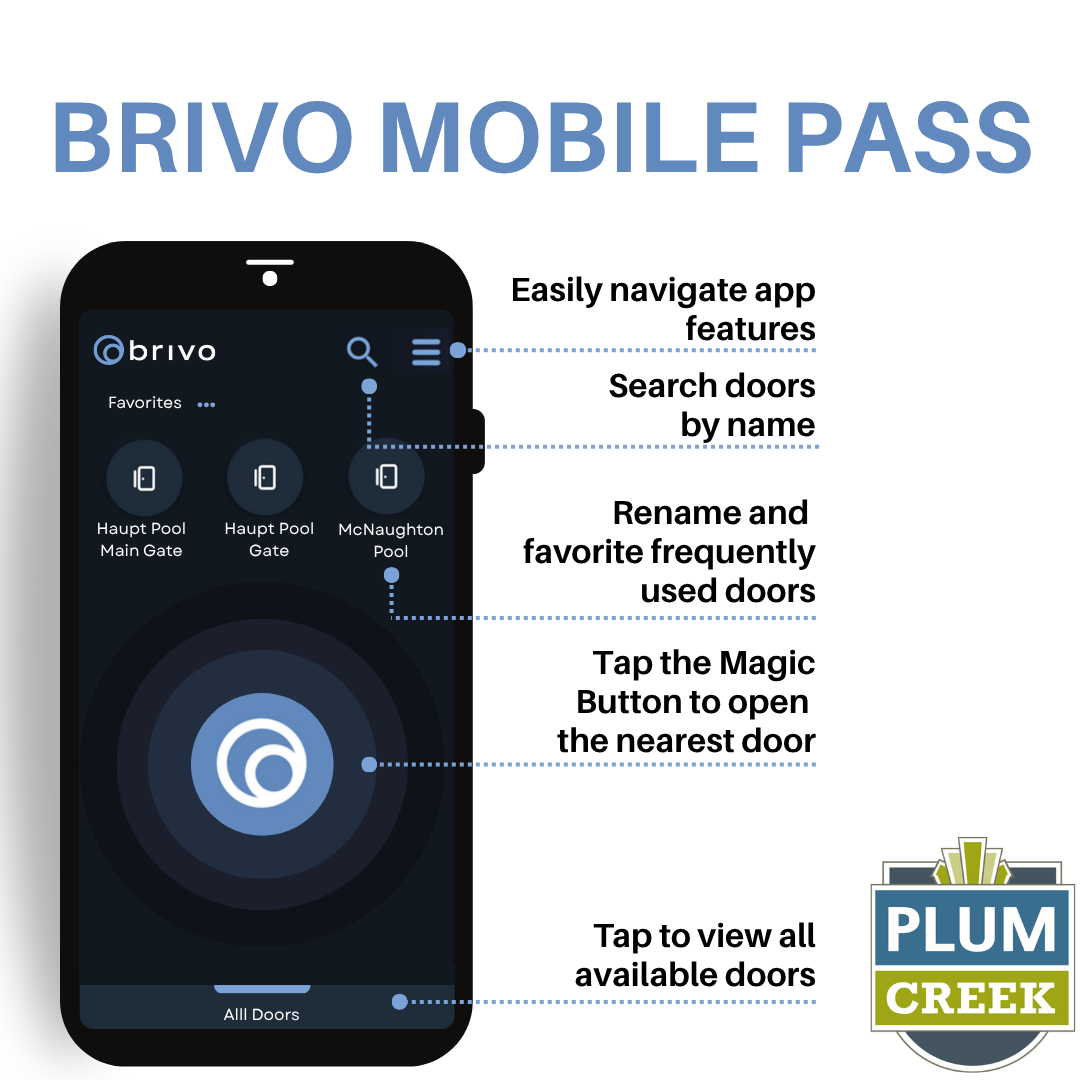
We’re excited to announce that residents can now sign up for Brivo Mobile Pass! With Brivo Mobile Pass, you can access our community amenities quickly and conveniently right from your smartphone—no need to carry a physical pool key card.
The Mobile Pass is completely FREE for residents and delivers secure, touchless entry at the tap of a button—simply ensure Bluetooth is enabled.
For those who prefer a traditional option, physical pool key cards are still available for $25 each. Whether you choose the digital pass or a key card, you’ll enjoy easy access to all our amenities. If you don’t activate Brivo Mobile Pass, no need to worry, all current pool key cards will still remain active.
Ready to get started? Fill out the Pool Key/Rec Tag/Brivo Mobile Pass Request on our website: https://plumcreekhoatx.com/resources/online-forms/pool-key-rec-tag-request/ [You must be logged in to access].
Enjoy the convenience of Brivo Mobile Pass!
Activating your Brivo Mobile Pass
Follow these simple steps to set up your Brivo Mobile Pass:
- Submit a request: Visit plumcreekhoatx.com and submit a request form at this direct link.
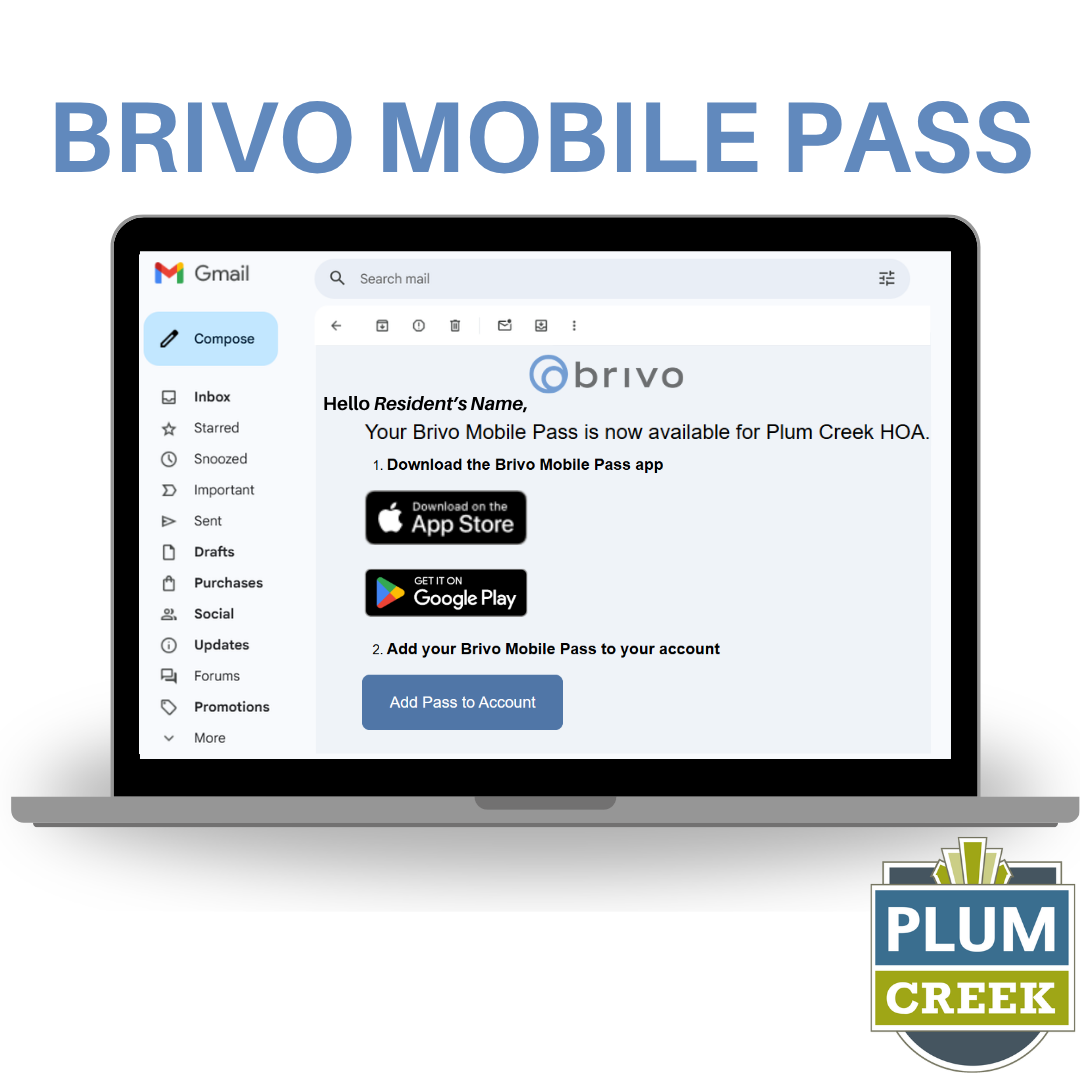
- Download the Brivo Mobile Pass App: Download the app by searching for Brivo Mobile Pass in the Apple App Store or Google Play Store.
- Check your Email: Once your request is processed, you will receive an email from Brivo to claim your account and set a password. The subject title of the email is “Your Brivo Mobile Pass is ready!”. IMPORTANT: Your Brivo Mobile Pass invitation must be accepted within 7 days.
- Account Creation / Logging In: When signing in, be sure to click the Sign In button in blue. Use the same email and password combination you just created during registration. Upon successful log in, a short tutorial will display.
*NOTE – For your added security, the Brivo app only allows for one active session per user. Sharing account credentials or logging in on another device will result in a forced log out from any other active session.
Brivo Rec Tag
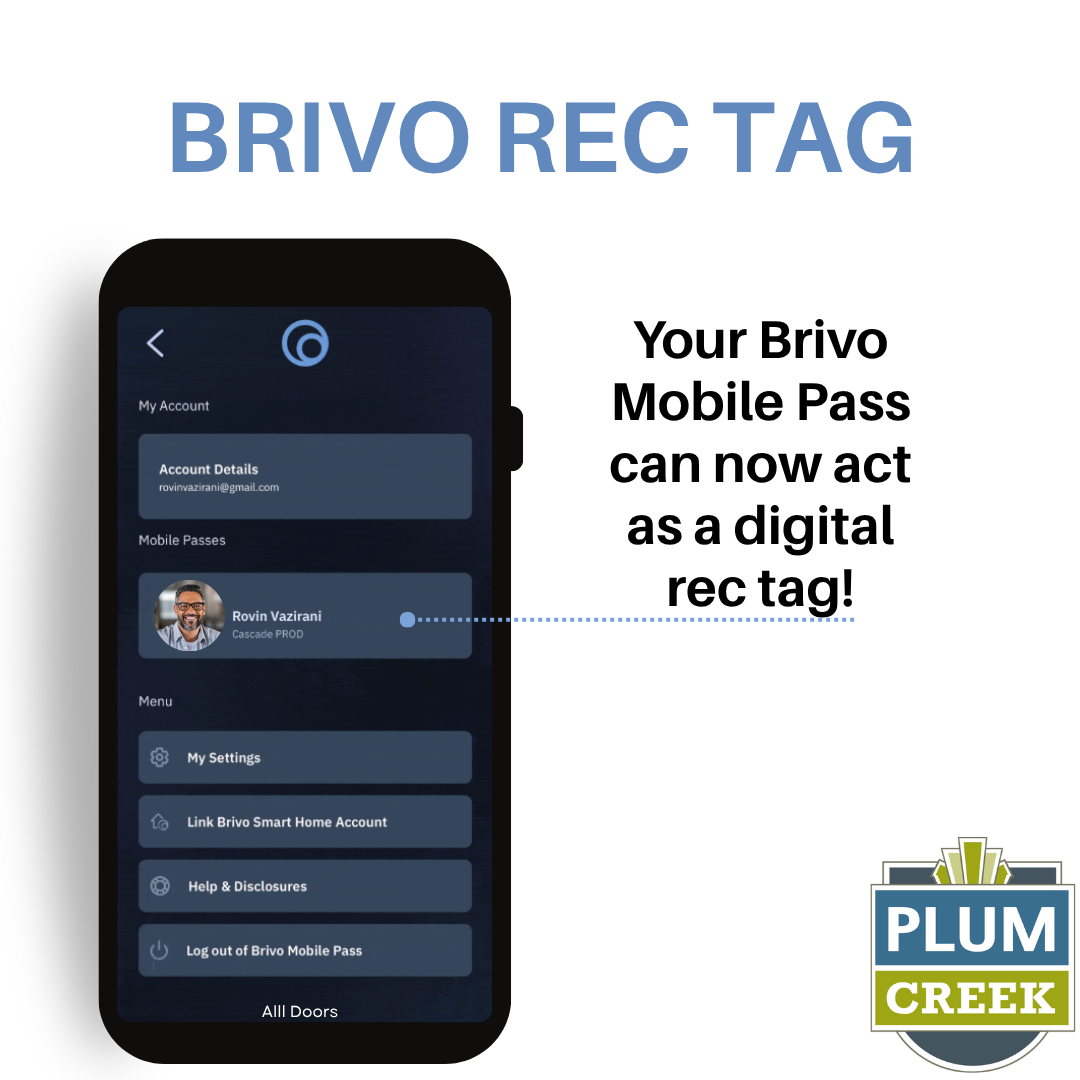
Your Brivo Mobile Pass can now act as a digital rec tag! When you register for your Brivo Mobile Pass, simply upload a clear headshot on the registration form, and you’re all set. This photo becomes your digital rec tag, which you can easily access and display right from your phone when enjoying Plum Creek amenities.
How to Access Your Digital Rec Tag:
- Open your Brivo Mobile App
- Tap the three lines (menu icon) at the top right
- Your digital rec tag will display under the Mobile Passes section
When staff or security ask to see your rec tag, simply pull up the app and show them your digital ID, it’s that easy! No more worrying about forgetting your physical rec tag at home.
The Peninsula Brivo Mobile Pass
Great news for Peninsula residents! We will be streamlining community access with Brivo Mobile Pass. The Mobile Pass lets you unlock both Peninsula gates and all Plum Creek amenities directly from your smartphone, eliminating the need to juggle multiple physical credentials like pool key cards or gate fobs.
Unlike traditional gate fobs, your Brivo Mobile Pass offers true remote access. Open the Peninsula gates from any location to accommodate deliveries, welcome guests, or allow service providers entry, all without being physically present. It’s flexible access management designed for modern living.
Best part is, the Brivo Mobile Pass is completely FREE for all residents!
If you prefer physical cards and gate fobs, then no worries! Pool key cards and Peninsula gate fobs remain available at $25 each. Existing key cards and gate fobs will continue working as always so there are no interruptions. The mobile pass is simply an added convenience for those who want to go digital.
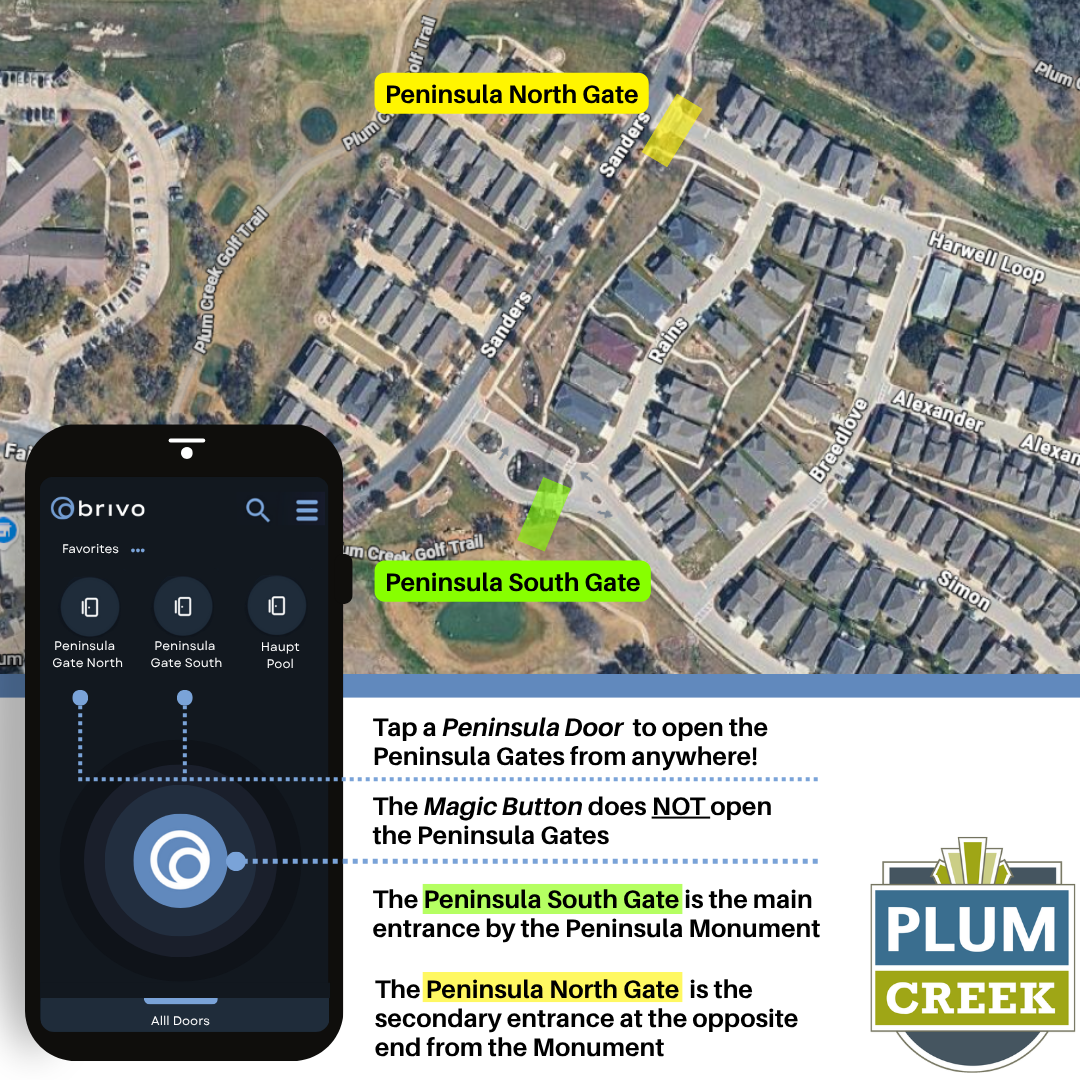
Understanding Your Peninsula Gate Access
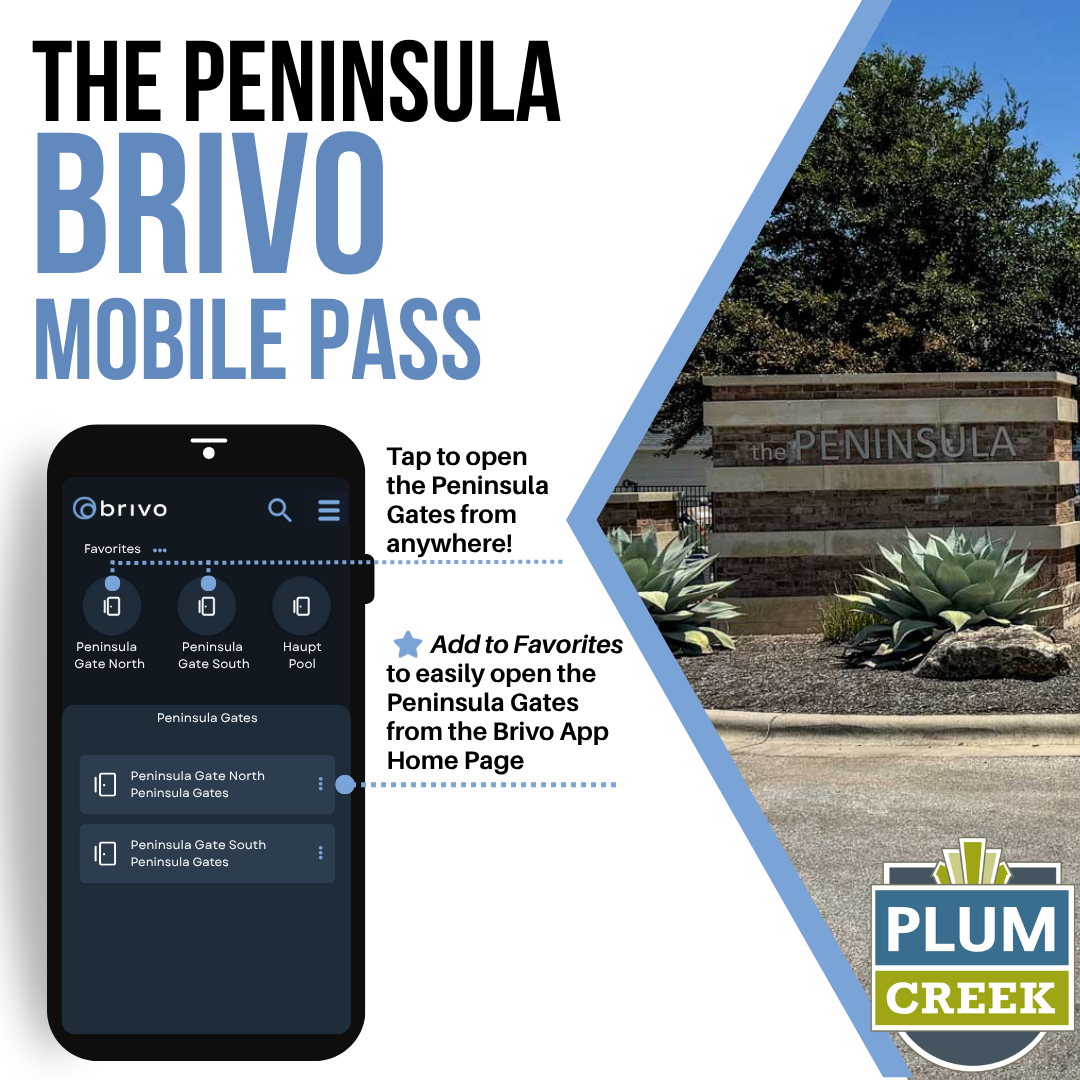
To help you get the most out of your Brivo Mobile Pass, here’s a quick visual guide showing how to access the Peninsula gates and where they’re located:
Important Tips:
-
Tap a Peninsula Door to open the Peninsula Gates from anywhere! You don’t need to be at the gate—open it remotely from your home, office, or anywhere else.
-
The Magic Button does NOT open the Peninsula Gates. The Magic Button is for pool and amenity access only. To open the Peninsula gates, tap the specific gate door in your app. Follow the directions below to add the Peninsula Gates to your Brivo Mobile App Home Page
How to add the Peninsula Gates on the Brivo Mobile App Home Page:
- Open your Brivo Mobile App
- Tap “All Sites” at the bottom of the app
- Tap “Peninsula Gates”
- Select the 3 dotted vertical line for each Peninsula Gate [North & South]
- Tap “Add to Favorites”
Gate Locations:
- Peninsula South Gate: Main entrance by the Peninsula Monument
- Peninsula North Gate: Secondary entrance at the opposite end from the Monument
Once you’ve added both gates to your favorites, you’ll have instant remote access to open either gate with just a tap!